
Insta360 Video Repair Online Free: Fix INSV & MP4 Files
Repair damaged Insta360 INSV and MP4 recordings. Start with the full-resolution camera original; for 360 footage, keep its companion files and check the saved result in Insta360 Studio.
 Secure
 Supports INSV, MP4, Your file stays private


KEEP THE 360 ORIGINAL
Find the original: INSV, MP4 or an LRV preview?
 INSV
INSVCamera original
Keep original names and companion files.
 LRV
LRVPreview or proxy
Not a substitute for the full-resolution original.
 MP4
MP4Camera recording or exported video
Check whether it came from the camera or Studio.
For camera recording repair, start with the original INSV or MP4. Keep related LRV and companion files as well.

01
Studio import: Unknown error (2)
Studio rejects the camera original instead of showing the recording.
CHECK FIRST
Use the untouched original and a Studio version compatible with the camera. Check whether the file was renamed or copied incompletely.
WHEN TO TRY REPAIR
The complete, correctly named original still fails in compatible Studio.

02
No master file corresponding to LRV
The preview is available, but Studio cannot find its full-resolution source.
CHECK FIRST
Find the matching INSV on the card or in a backup, keeping its original name and folder companions.
WHEN TO TRY REPAIR
The INSV exists but is damaged. LRV repair is supported separately, but cannot recreate a missing full-resolution master.

03
Studio cannot retrieve the paired video
A recording mode uses two lens files, but only one was copied or retained.
CHECK FIRST
Put the original paired files from the same take in one folder. Check card backups before assuming either file is corrupt.
WHEN TO TRY REPAIR
The required file set is present but one original is unreadable. A missing lens file needs another source, not renamed duplicates.

04
The output plays, but is not usable in Studio
An output file opens as video but has an orientation problem or cannot be imported for editing.
CHECK FIRST
Compare the original and saved output in Studio. Check importing, stitching, stabilization and reframing separately.
NEXT STEP
A playable image does not confirm all 360 information survived. Keep the original and identify which editing function is unavailable.
CAMERAS & RECORDINGS
Insta360 cameras, from 360 footage to everyday POV
Choose by the recording you have: an INSV original or a supported MP4 from your camera.
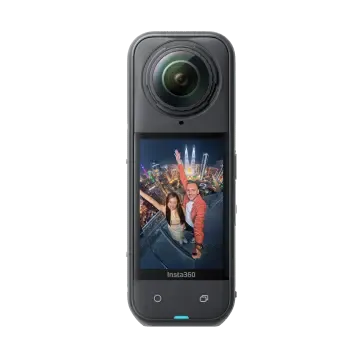
Insta360 X5
X series 360 cameras
X5 · X4 · X3 · ONE X2
Travel, rides and immersive action recordings
INSV originals and supported MP4 recordings
Keep the 360 recording set →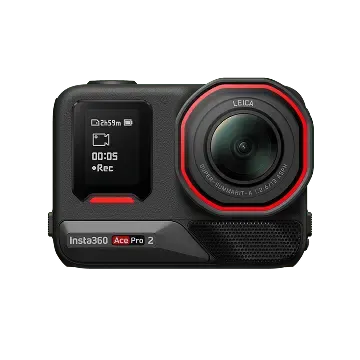
Insta360 Ace Pro 2
Ace series action cameras
Ace Pro 2 · Ace Pro · Ace
Action footage, vlogs and outdoor recordings
Start with the saved original MP4
Find the MP4 repair path →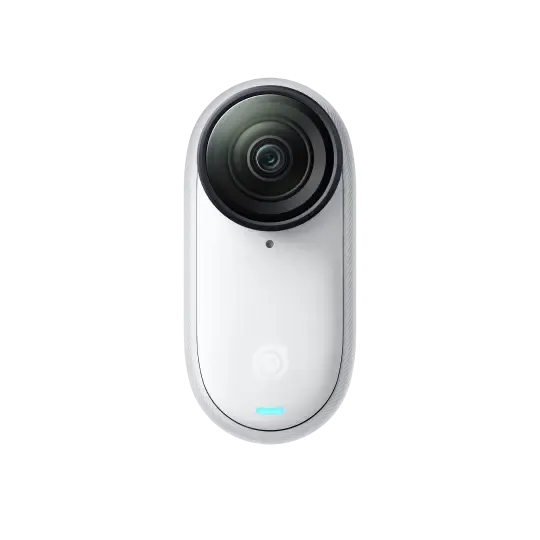
Insta360 GO 3S
GO series wearable cameras
GO 3S · GO 3
Hands-free POV and everyday moments
Use a complete original MP4 copy
Check your original recording →
ONE R and ONE RS modular cameras
Keep the originals from the lens module and recording mode you used. Choose INSV or MP4 here; retain any companion files alongside the source.
Model names help identify the source. Repair availability depends on the actual format, recording mode and remaining file data; the list is not an individual model test certification.

THREE DIFFERENT FAILURE POINTS
Does it fail at import, stitching or reframing?
One source. Different compositions.


Switch the frame to see what an export includes.
Framing illustration using a wide image; not a 360 source, Studio screenshot or repair result.
01
Import
For "No master file corresponding to LRV", locate the matching INSV. For "not supported in current offset version", update Studio to a version that supports your camera.
02
Stitch
Both lens views must be available when the mode uses separate files. A missing source is different from a visible seam.
03
Reframe
A playable export does not establish that the original 360 metadata, horizon or stabilization is usable.
KEEP THE RECORDING SET TOGETHER
One recording may need more than one source file
The required file set varies by model and recording mode. Preserve the original names and adjacent files together; do not assume every INSV recording has the same two-file layout.
File-set illustration. Actual files depend on the camera and recording mode.
How to Use Insta360 Video Repair in 3 Steps
Select the original, run repair and save the available output. Screenshots show the shared video repair workflow.
MADE FOR YOUR FILES
From a camera original to your next edit
Playback, 360 source views and editing metadata are separate parts of the result.
01
Start with the camera original
Use the full-resolution recording and retain the associated files. An LRV preview is not the master.
02
Repair the damaged file
Work with the saved media and keep the output separately. Check the file type that is actually returned.
03
Return to your edit
A readable 360 source may support Studio stitching and reframing. A flat MP4 can be edited as video, but does not replace the 360 original.
Illustrative content and workflow · not a measured repair result

Usable recorded moments
Recover access to readable footage from the damaged source.

A path back to Studio
Use the available source and metadata for the stitching or reframing operations they support.

A new shareable edit
Build your next edit from the usable result, with the original kept separately.
Choose how to repair your Insta360 video
Start online for a quick single-file repair. Choose Fixo Desktop for larger files, batch processing or advanced repair options.
Capability | Online repairFor a quick single file | Desktop repairFor larger or multiple files |
Advanced repair |  Not available online Not available online |  Available in the desktop app Available in the desktop app |
Best for | One damaged INSV or MP4 original | Larger recordings and a desktop repair workflow |
Formats supported | INSV, MP4 | INSV, MP4 |
File size | Up to 100 MB | No online upload size limit |
Batch repair | One file at a time | Supported |
Local & private processing | Transferred over an encrypted connection | Local processing on your device |
Offline use | Internet connection required | Offline file processing |
Complex damage | Common file corruption | Damaged recording data; check Studio compatibility after repair |
Premium technical assistance | Not included | Available with desktop support |
Access | Open the browser and go | Download and install |
Repair Online No installation required | Download Fixo DesktopDesktop app download required |
Insta360 Video Repair FAQs
The preview and original are different files. A readable preview does not establish that the original recording is intact. Check the full-resolution INSV and keep the files associated with the recording.
A playable video is not proof of full Studio compatibility. Check the saved file type first. For a 360 original, import the required recording set into a Studio version that supports your camera, then try stitching, stabilization and reframing. A flattened MP4 export cannot substitute for missing 360 source views or metadata.
No single file-layout rule applies to every model and recording mode. Preserve all original associated files and follow the requirements for your specific camera and recording.
A recovered filename does not confirm that all original bytes were recovered. Repair can only work with the readable data in the file. Missing or overwritten footage cannot be reconstructed simply by repairing its structure.
Keep the full-resolution original, its associated files and healthy clips from the same setup. Do not rename or convert the only source copy before checking it.
Changing the name does not reconstruct damaged media, restore a missing lens file or preserve the full 360 workflow. Keep the original naming and inspect the recording in a compatible Insta360 application.
No blanket guarantee is made here. A video can play while some editing metadata is unavailable. Test the saved result in Studio for stitching, horizon, stabilization and the reframing operations you actually need.
No. Wide-angle recordings can be saved by the camera as MP4, while Studio can also export MP4. Choose the damaged file from the stage where the problem occurred. For an original camera recording, use its full-resolution INSV or MP4; an LRV preview does not replace either.
First locate the matching INSV original in the camera folder or backup and retain its original name. LRV is a supported repair format in the general Video Repair workspace, but it is a lower-resolution preview. Repairing it cannot recreate the missing full-resolution master or a missing lens view. Use the INSV/MP4 selector on this page when the original itself is damaged.
For a recording mode that creates paired INSV files, copy both files from the same take into one folder with their original names. Check the card and backup for the missing partner before repairing anything. If the required set is complete, supported by Studio and still unreadable, try repairing the damaged original. Not every camera mode creates a pair.
Review the allowance, preview and saving conditions shown by the online service before processing. Downloading the desktop installer is separate from its repair and saving license.
Insta360 INSV Repair and Studio Error Guides
Explore EaseUS tutorials for file repair, common errors and troubleshooting.
How to repair INSV video files
Explore common causes of damaged INSV footage and the available repair methods.
Insta360: “Failed to load the file since it’s corrupted”
Follow the checks and repair options for this Insta360 Studio loading error.
Cannot open INSV files on Mac
Check application compatibility and repair options when an INSV file will not open on Mac.
Related Repair Tools


Insta360 Video Repair Case Studies
Explore Insta360 recording problems from travel clips to workshop videos, with stories about getting saved footage back into a useful editing workflow.
Alex W.
Travel filmmaker
Illustrative repair scenario | Case FX-INSTA360-0182
TRUSTPILOT
From users like you
Real feedback on EaseUS products and customer support, shared on Trustpilot.
Read all EaseUS reviewsEaseUS company reviews
Across EaseUS products and services.
Repair your Insta360 original, then get back to editing
Choose the damaged INSV or MP4 and keep its companion files. Preview and save the available result; check Studio import before continuing a 360 project. Specialized file repair
 Keep the original
 Save a separate copy