
Free GoPro Video Repair Online: Fix MP4 Files
Repair GoPro MP4 videos damaged by battery loss, overheating or recording interruptions online with EaseUS Fixo's free repair allowance. Upload an original clip copy, start repair and preview the footage. Choose Fixo Desktop for large files or advanced repair with a matching GoPro sample.
 Secure
 Supports MP4, MOV, M4V, LRV, Your file stays private


Repair Corrupted GoPro Videos After Recording Interruptions
A GoPro MP4 may be repairable when the recorded media survives but its playback index or timing is incomplete. Fixo attempts to rebuild usable video from the saved file; missing or overwritten footage cannot be recreated.
Start with a copy of the full-resolution original. Follow the actual diagnosis shown by the live tool, and supply a matching reference only if requested. Check the repaired result separately in your intended player.

Recording action
Video, audio, timecode, and telemetry are written
Recording interrupted
Battery, impact, heat, card, or freeze
Tracks need rebuilding
Readable media may remain without a usable index
For ordinary footage, follow your model's camera repair instructions after preserving a copy. If the original card must be preserved exactly, do not start a write-capable camera repair before arranging an appropriate backup.
GoPro Video Won't Play After Battery Loss? Check File Repair
Battery loss can leave the last MP4 unfinished and trigger “Repairing Your File” or a damaged-file message. Follow your camera model’s File Repair instructions, preserve a copy and check the result before trying another method.
Work from a copy. Keep the original card unchanged.

Original camera
Try its built-in File Repair

Source card
Stop recording and formatting

Verified copy
Copy the whole recording set

Separate output
Never save back to the card
Stop writing to the card
Do not record test clips, format the card, or copy repaired output back onto it.
Charge the camera
Use the original camera and card with enough power to complete the automatic repair.
Allow File Repair to finish
Power on and follow the camera prompt. Do not remove the battery or card during the process.
Copy the full recording set
If camera repair fails, copy the MP4 and related LRV or THM files to another drive before online repair.
Official source: GoPro HERO10 Black User Manual states that the camera automatically attempts to repair files damaged by power loss or a save problem.
Repair GoPro MP4 and LRV Video Files
Fixo supports repair of GoPro MP4 and LRV videos. Prefer the full-resolution MP4 when available. If only an LRV remains, repair its surviving content; a low-resolution proxy cannot recreate the original MP4’s full quality. Keep all chapters and THM sidecars.
.MP4
Full-resolution master
.LRV
Low-resolution proxy
.THM
Still thumbnail
.360
Separate MAX workflow
Check the extension: prefer the MP4 master, repair an LRV if only the proxy remains, and treat MAX 360 footage separately.

Full-resolution recording
Primary repair source containing the selected resolution, frame rate, codec, audio, timecode, and available GPMF tracks.

LRV video repair
A supported low-resolution video source. If this is the only remaining clip, use it for repair and preview the detail it actually contains; renaming it does not restore the MP4 master’s resolution or bitrate.

Thumbnail image
A preview image associated with the clip. It can help identify content but cannot restore motion, sound, or telemetry.

GoPro MAX recording
This HERO MP4 entry does not accept MAX .360 files. Contact support to confirm a separate repair path and compatible preview software; renaming .360 to .mp4 is not a solution.
 Official source: Open GoPro documents the full-resolution MP4, LRV proxy, THM thumbnail, file naming, and media transfer behavior.
GoPro MP4 Repair for 4K, Slow Motion and Chaptered Video
GoPro recording modes use different resolutions, frame rates and file structures. Identify your HERO MP4 settings before repair, keep neighboring chapters and use a matching reference when the desktop repair process needs one.
4K GoPro footage will not play
If 4K or HEVC footage stutters only on one PC, first check its player and decoding support. If the same original fails at the same point in multiple compatible players, file damage may be the cause. Preserve the full-resolution MP4.
Repair approach
For Advanced Repair, use a playable clip from the same camera with matching codec, resolution, and recording mode.
Slow-motion video freezes or stutters
High-frame-rate footage needs a compatible player. If the same clip stops at the same point in different players, file damage may be the cause.
Repair approach
Match the original recording frame rate and codec when choosing a reference. A normal 30 fps clip is not an equivalent slow-motion sample.
Only one GoPro chapter is corrupted
A long ride can be saved as several numbered MP4 files. If only the last chapter will not open after the battery dies, keep that file and all the playable chapters.
Repair approach
Repair the affected chapter separately. A neighboring clip from the same session may help as a reference when its settings match.

 Using encrypted GoPro Labs footage?
Advanced GoPro Video Repair with a Matching Sample
For severe GoPro MP4 damage, use a healthy, unedited clip from the same camera as a desktop repair reference. Match resolution, frame rate, codec, stabilization, color mode and audio settings as closely as possible.

Do not use an LRV proxy, social media download, Quik export, or transcoded file as the reference for a full-resolution MP4.
Healthy GoPro clip
Same camera, firmware, and recording mode
 ResolutionFrame rateH.264 or H.265StabilizationColor and lens modeAudio configuration
Damaged GoPro MP4
Original file, not renamed internally or converted
How to Repair a Corrupted GoPro Video in 3 Steps
Upload a copy of the original GoPro MP4, start repair and preview the result. Check the beginning, middle and end of the clip, then save a separate copy and review how it joins neighboring recording chapters.
What GoPro Video Repair Can Recover from a Damaged MP4
GoPro repair depends on the video, audio and file information still present in the recording. Check each repaired chapter and any required telemetry; missing frames, overwritten footage and absent sensor data cannot be assumed recoverable.
 Potentially recoverable
- Incomplete MP4 movie index and track relationships
- Readable H.264, H.265, audio, and timecode samples
- Duration, sample sizes, offsets, keyframes, and synchronization
- Readable GPMF GPS, gyro, accelerometer, and camera fields
 Not reconstructable
- Zero-byte files or files containing no encoded media
- Video, audio, or metadata sectors overwritten by new card activity
- Action moments or sensor samples that were never written
- Encrypted GoPro Labs media without the correct password

If the footage documents an accident
Preserve the original card, create a verified image or copy, record file hashes, and avoid writing any repaired file to the source. A repaired video is a derivative and should not replace the original evidence.
Repair GoPro MP4 Files When Camera File Repair Fails
If GoPro File Repair fails or the repaired clip still will not play, preserve the original MP4 and try Fixo on a copy. Larger files and severe structural damage may need a desktop workflow with a matching healthy recording.
The last GoPro video will not open
Battery loss can interrupt the file before its movie information is complete. Fixo can attempt to restore playable footage from the recorded data.
A long recording has one broken chapter
Repair the affected full-resolution MP4 and keep the neighboring chapters. A small LRV preview cannot replace the camera master’s image quality.
The original needs a matching sample
Use desktop Advanced Repair with a healthy clip from the same GoPro and recording mode. Match resolution, frame rate and codec.

Check GoPro Audio, Timecode and GPMF Metadata After Repair
A playable GoPro video does not confirm that every audio or telemetry track survived. If your recording contains timecode, GPS, gyroscope or other GPMF data, compare the repaired copy with the source and check it in your intended editing workflow.
A playable picture does not prove GPS or gyro data survived. Check playback and metadata separately; a dedicated product metadata report has not been verified.

Video track
H.264 or H.265 encoded samples

Audio track
Recorded sound and synchronization

Timecode track
Capture timing and sequence context

GPMF telemetry track
GPS, gyro, accelerometer, camera and computed data
Technical source: GoPro GPMF Parser documentation describes GPMF as a time-indexed MP4 metadata track and documents video, audio, timecode, telemetry, and historical SOS repair tracks.GoPro Video Repair FAQs
Often, yes. Repair may be possible when a GoPro MP4 still contains readable H.264 or H.265 video, audio, timecode, or GPMF data but its movie index, sample map, timing, or track relationships are incomplete. The result depends on the media data that remains in the original file.
Yes, when the original card and camera are available. GoPro documents an automatic File Repair process for recordings damaged by power loss or a save problem. Keep the battery charged, reinsert the original card, and allow the camera to finish. If it fails, stop using the card and repair a copied original file.
LRV is a low-resolution video proxy and is supported for repair. Prefer the original MP4 when available; repairing an LRV cannot restore detail absent from that proxy. THM is a thumbnail image, not a video backup.
Metadata preservation must be verified against the source and the repaired copy. Missing fields cannot be assumed recoverable; support for individual metadata fields is pending product validation.
Use a short, healthy, unedited clip recorded by the same GoPro camera with the same resolution, frame rate, codec, stabilization, color profile, lens mode, and audio settings. A matching reference is more useful than a longer clip recorded with different settings.
Support depends on the GoPro model, codec, frame rate and file condition. For HEVC or high-frame-rate recordings, keep the original MP4 and confirm compatibility with the repair workflow. If Advanced Repair requests a sample, match the original recording settings.
A zero-byte file contains no video to reconstruct. Files filled with zeros, 0xFF data, or sectors overwritten by later card activity also lack usable encoded samples. In those cases, storage recovery from an untouched image of the original card may be the correct next step.
Use online repair for a small clip in your browser. Choose Fixo Desktop for larger files, local processing or Advanced Repair with a matching sample. Check the current service for upload, preview and download terms.
Follow the instructions for your camera model and preserve a copy of the recording set. Do not repeatedly reset the camera or record test clips on the affected card. If camera repair keeps failing, work on a copied MP4 or LRV; use a matching sample if Advanced Repair requests one.
4K, HEVC or high-frame-rate footage may exceed a player’s decoding support or a computer’s playback capability. Test a compatible player and another capable device. If the same original fails at the same point across compatible players, inspect the copied file for damage rather than assuming all stuttering needs repair.
GoPro Video Repair, Playback and SD Card Recovery Guides
Read GoPro troubleshooting guides for videos that will not play on a PC, 4K or HEVC compatibility, and missing SD card recordings. Choose the next step based on whether your footage is lost, incompatible or corrupted.
Fix GoPro videos not playing on a PC
Check corruption, HEVC support, system requirements, storage, and playback settings before rebuilding the file.
Recover corrupted or damaged GoPro video files
Use this path when a clip was deleted, formatted, or lost from the GoPro SD card before repair.
Diagnose a 4K video that will not play
Rule out decoder, hardware, and player limitations before treating a high-resolution GoPro file as corrupt.
Related online repair tools


GoPro Video Repair Case Studies
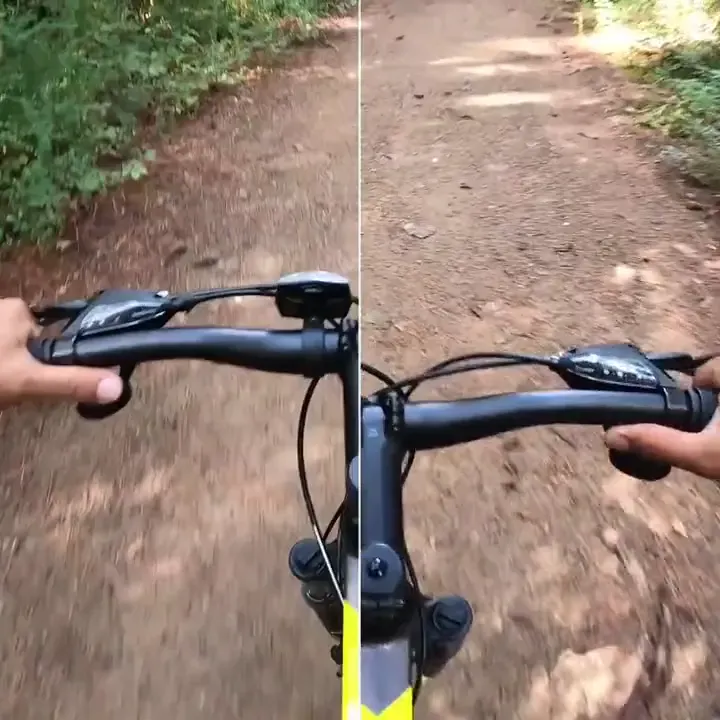
Explore GoPro repair scenarios from cycling, underwater trips and track sessions. Review interrupted recordings and damaged chapters, then check the continuity and sound of the footage you want to keep.
Maya T.
Mountain biker
Illustrative repair scenario | Case FX-GOPRO-0182
Start Repairing Your Corrupted GoPro MP4 Online
Upload the original GoPro MP4 copy and preview the repaired footage. Save the result separately, keep all recording chapters and check any telemetry needed for your project. GoPro-specific diagnosis
 Check GPMF separately
 Preview before download